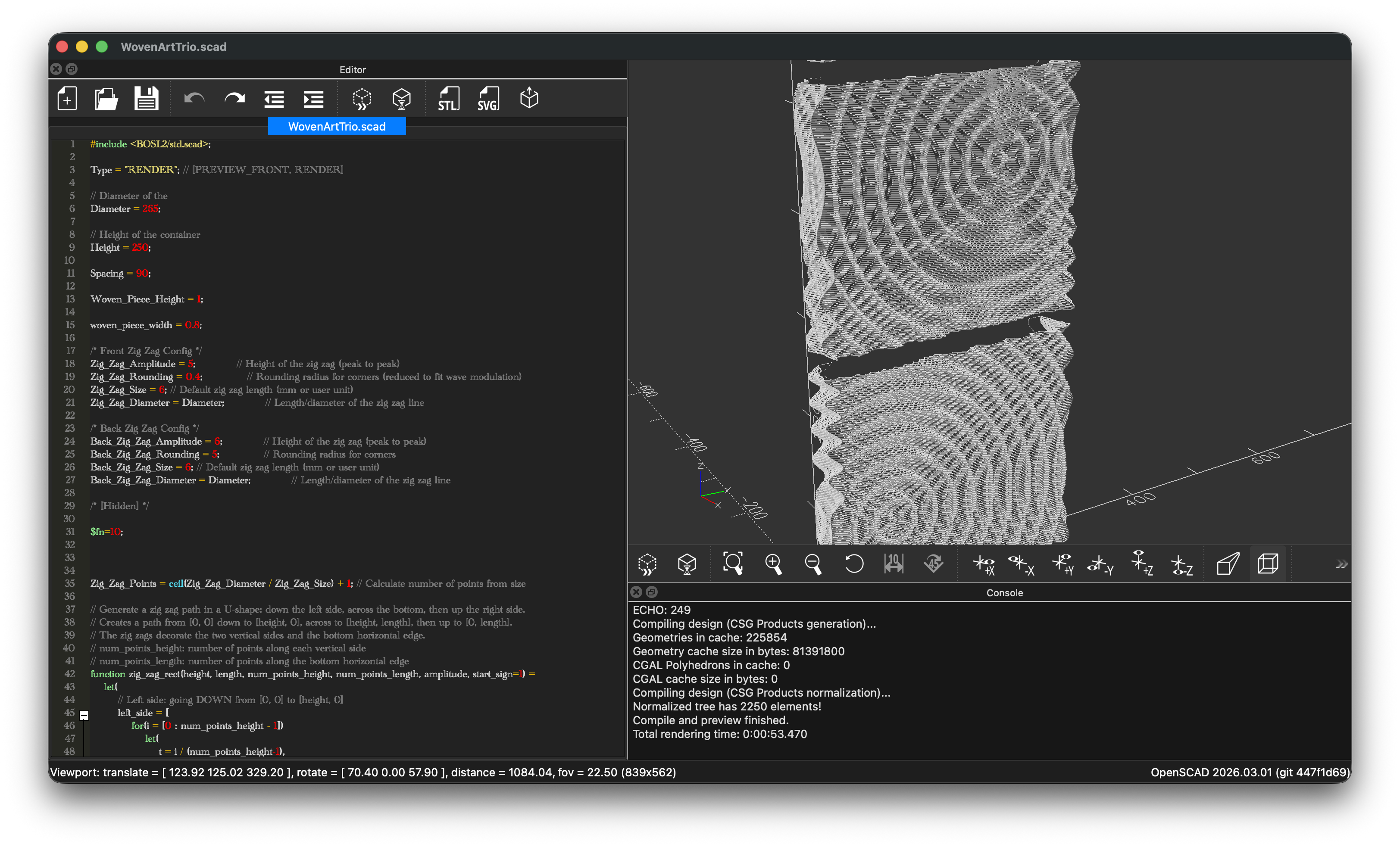
OpenSCAD is a free and open-source software for creating 3D CAD objects. Unlike traditional CAD programs that use interactive modeling, OpenSCAD adopts a script-based approach where you describe your 3D models in code. This makes it particularly powerful for:
- Parametric design: Easily adjust dimensions and create variations of your models
- Precision modeling: Define exact measurements and relationships between parts
- Version control: Track changes in your designs using Git or other version control systems
- Reproducibility: Share code that others can modify and customize
OpenSCAD is perfect for makers, engineers, and anyone who enjoys a programmatic approach to 3D modeling.
How to Download and Install OpenSCAD
To get started with OpenSCAD, you’ll need to download the software from the official website.
Download Link
Visit the official OpenSCAD downloads page: https://openscad.org/downloads.html
Important: Download the Developer Snapshot
Make sure to download the Developer Snapshot, not the stable version. Development snapshots include newer features, bug fixes, and performance improvements that significantly enhance your OpenSCAD experience. These snapshots are generally stable enough for daily use and provide access to newer functionalities like improved text rendering and faster operations.
Look for the “Development Snapshots” section on the downloads page and choose the appropriate version for your operating system:
- Windows: Download the
.exeinstaller - macOS: Download the
.dmgfile - Linux: Download the
.AppImageor use your distribution’s package manager
After downloading, follow the standard installation procedure for your operating system.
Installing the BOSL2 Library (Optional but Highly Recommended)
BOSL2 (Belfry OpenSCAD Library v2) is a powerful library that extends OpenSCAD’s capabilities with hundreds of useful functions, shapes, and utilities. It makes complex operations much simpler and helps you write cleaner code.
Why Use BOSL2?
- Extensive collection of shapes and modules
- Advanced rounding and chamfering tools
- Attachment system for easier part positioning
- Mathematical utilities and helper functions
- Well-documented with many examples
Installation Steps
-
Locate your OpenSCAD libraries directory:
- Windows:
Documents\OpenSCAD\libraries - macOS:
~/Documents/OpenSCAD/libraries - Linux:
~/.local/share/OpenSCAD/libraries
If the
librariesfolder doesn’t exist, create it. - Windows:
-
Download BOSL2:
Visit the BOSL2 GitHub repository: https://github.com/BelfrySCAD/BOSL2
You can:
- Click the green “Code” button and select “Download ZIP”
- Or clone the repository using Git:
cd ~/Documents/OpenSCAD/libraries # or your libraries path git clone https://github.com/BelfrySCAD/BOSL2.git -
Extract and place the files:
If you downloaded the ZIP file, extract it and rename the folder to
BOSL2. Move this folder to your OpenSCAD libraries directory. -
Verify the installation:
Open OpenSCAD and try running this code:
include <BOSL2/std.scad>

cuboid([30, 40, 50], rounding=5);
If you see a rounded box, BOSL2 is installed correctly!
Installing the OpenSCAD Extension for VSCode (Optional but Highly Recommended)
OpenSCAD has a built-in text editor, but it’s limited in terms of AI integration, autocomplete, and syntax highlighting. If you prefer working in a modern code editor, you can develop OpenSCAD projects in Visual Studio Code with syntax highlighting, autocomplete, and AI integration.
Why Use VSCode for OpenSCAD?
- Modern code editor with excellent syntax highlighting
- Autocomplete and IntelliSense
- Integrated preview of your models
- Built-in Git integration
- Extensive customization options
Installation Steps
-
Install Visual Studio Code:
If you don’t have VSCode installed, download it from: https://code.visualstudio.com/
-
Install the OpenSCAD extension:
- Open VSCode
- Click the Extensions icon in the sidebar (or press
Ctrl+Shift+X/Cmd+Shift+X) - Search for “OpenSCAD” in the marketplace
- Install the extension by Antyos (one of the most popular options)
-
Configure the extension:
- Open VSCode settings (
File > Preferences > SettingsorCmd+,/Ctrl+,) - Search for “OpenSCAD”
- Set the path to your OpenSCAD executable if not automatically detected
- Open VSCode settings (
-
Start coding:
- Create a new file with the
.scadextension - Write your OpenSCAD code
- Use the extension’s preview feature to see your model without leaving VSCode
- Create a new file with the
Essential Settings
After installing OpenSCAD, you’ll want to configure some important settings to get the best experience.
Enable Important Features
- Open OpenSCAD
- Go to Edit > Preferences (or OpenSCAD > Settings on macOS)
- Navigate to the Features tab
- Enable all features, paying special attention to:
- textmetrics: Enables better text rendering and measurement
- lazy-union: Improves performance by optimizing union operations
These features improve performance and add useful capabilities to OpenSCAD.
Enable Automatic Reload and Preview
For a smoother workflow, enable automatic reload and preview:
- In the OpenSCAD menu, go to Design
- Check Automatic Reload and Preview
With this enabled, OpenSCAD will automatically reload and preview your model whenever you save your .scad file. This creates a fast feedback loop, making development much more efficient.
Next Steps
Now that you have OpenSCAD installed and configured, you’re ready to start creating! Here are some resources to help you learn:
- Official OpenSCAD Manual: https://openscad.org/documentation.html
- BOSL2 Documentation: https://github.com/BelfrySCAD/BOSL2/wiki
I highly recommend starting with the BOSL2 wiki. It has many tutorials and is very comprehensive. In my day-to-day work, I don’t even look at the OpenSCAD documentation, only the BOSL2 one.
Happy 3D code modeling! 🎨